
Access Control
Access & Facilities
What it does
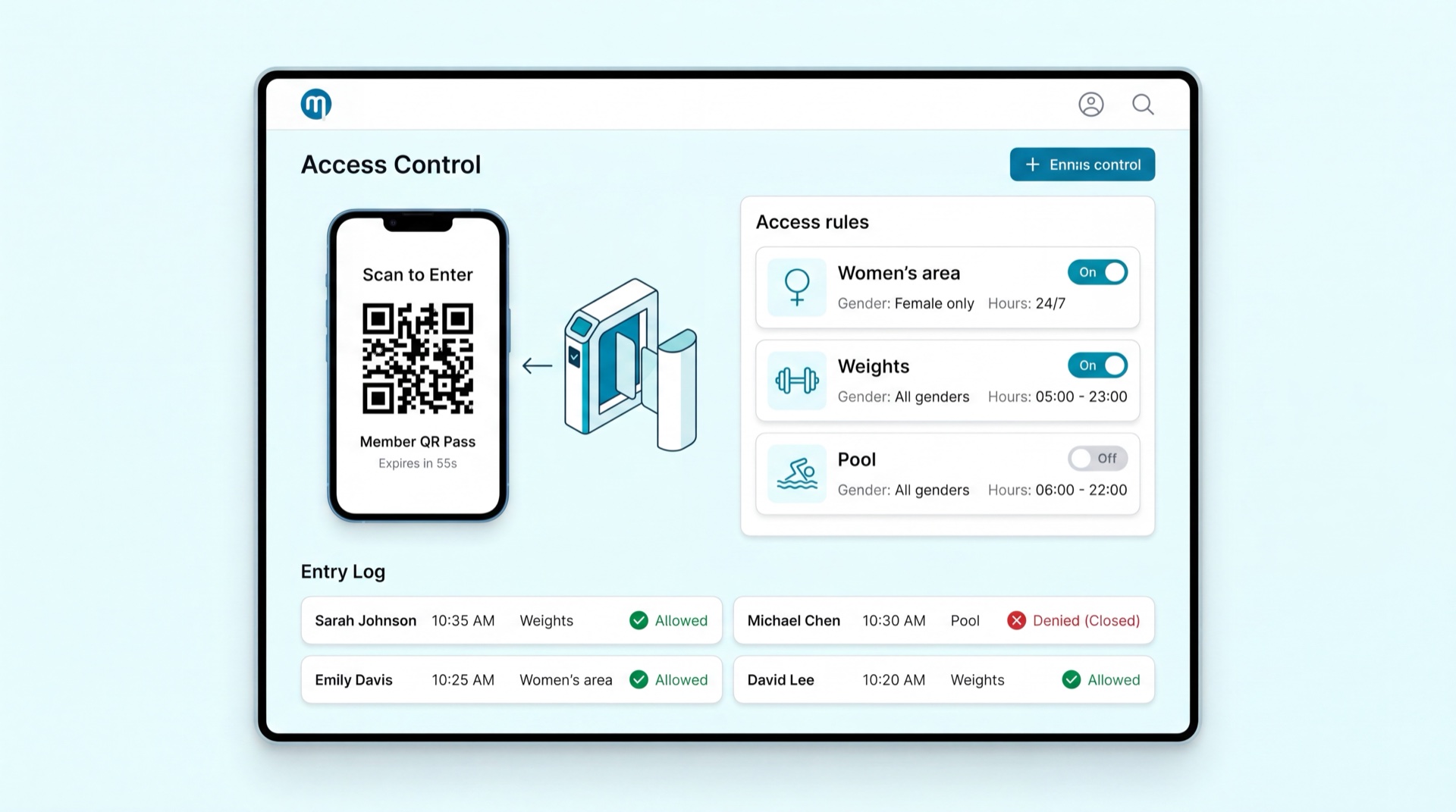
Access Control governs who gets through your gates and when. Memvera holds the member identity and decides grant-or-deny, then syncs that decision to your turnstile hardware (Pocket Key) in real time. Members enter by NFC, dynamic QR code, facial recognition, or a manual front-desk check-in. Every scan — accepted or rejected — is logged with a reason, fed into a live occupancy count, and made available to staff for instant dispute resolution.
Key concepts
- Credential — how a member proves identity at the gate: NFC wristband, rotating QR code in the app, facial biometric, or staff manual check-in.
- Grant / deny decision — Memvera checks membership status, dues, gender, and time rules, then sends an open gate or rejection to the hardware.
- Denial reason code — the explicit reason a scan was rejected (Frozen Account, Payment Overdue, Gender Mismatch, Expired Membership, After Last-Entry Time, Unrecognized Biometric).
- Check-in / check-out — entry and exit scans; the gap between them is the member's training duration, and the running difference is live occupancy.
- Last-entry cut-off — a window before closing after which entry is refused even though the club is still open.
- Female photo zero-storage — for female members the system authenticates from a biometric hash only; the original photo is never stored, shown, or transmitted.
Main tasks
Check a member in manually
- Open Check-in at the front desk.
- Search by name, mobile number, or National ID; the system validates the membership in real time.
- Confirm the result — for female clubs, follow the secondary verification prompt (ID check) since no photo is shown.
- The check-in is logged; any manual override requires a reason and records your staff ID.
Read the live access feed
- Open the Check-ins / Access screen for a live feed of every gate scan.
- Watch for rejected scans, each shown with its reason code.
- Resolve a dispute on the spot — the reason tells you whether it's a freeze, overdue payment, gender mismatch, or time restriction.
Activate or deactivate a member's access
- Open the member and find Access.
- Choose Deactivate to revoke entry instantly (this also blocks their NFC), selecting a reason code and note.
- Choose Activate to restore access. The change takes effect at the gate immediately.
Issue a replacement wristband/token
- From the member's profile, start Replace credential.
- Select the reason (lost / damaged / other) — the old credential is voided at the gate at once.
- Capture the replacement fee via the POS and bind the new credential; the event is logged on the member's audit trail.
Tips
INFO
QR codes refresh every 30 seconds to stop screenshot sharing, and serve as a backup when NFC or biometric readers fail — so members always have a way in.
TIP
Entry and exit scans drive real-time occupancy and the "Busy Now" indicator in the member app. Encourage members to scan out so duration and headcount stay accurate.
Related modules