
Operator Console
Operators & Owners
What it does
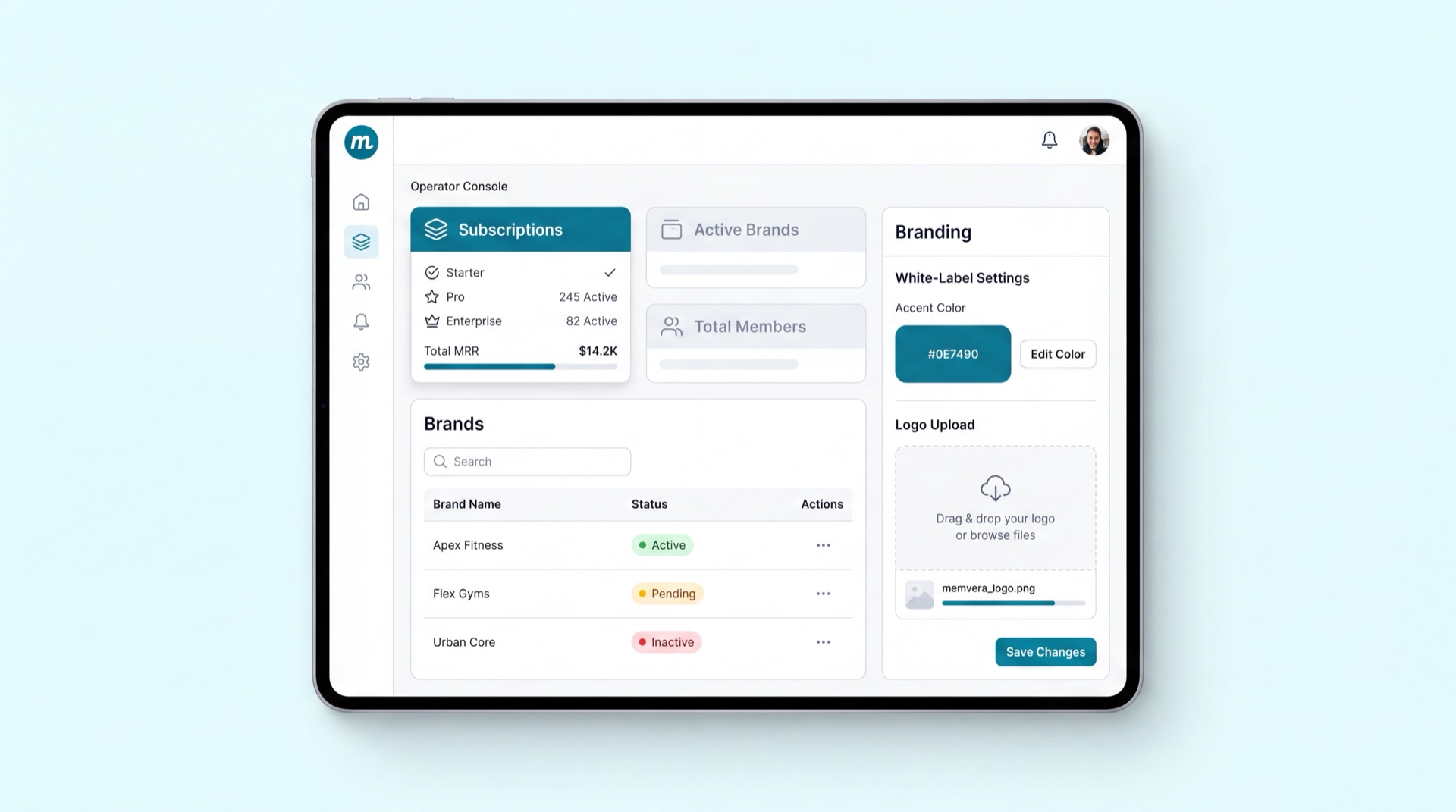
The Operator Console is the Memvera company's own portal — the place from which the operator runs Memvera across every gym brand on the platform. It is separate from a single gym's staff console: instead of managing one gym's members and floor operations, it manages the gyms themselves. From here you provision new gym brands, set the subscription tier each one pays for, and review the invoices Memvera issues to each brand. Because it spans every brand, it is cross-tenant (it has no single-brand context) and is locked behind an operator-only permission.
Key concepts
- Brand — a gym business on the platform. Provisioning a brand creates the gym's own tenant and gives it a console of its own; you can also suspend or reactivate a brand.
- Subscription tier — the package a gym pays Memvera for: Starter, Pro, or Enterprise. Each tier unlocks a different set of features and limits.
- Invoice (Memvera → gym) — the bill Memvera raises against a brand for its subscription. It records what the brand owes, for which period, and whether it's paid.
- Cross-tenant — the console sees all brands at once; it is not scoped to one gym, unlike the staff console.
- Operator permission — the access right that gates this console; only the Memvera operator team holds it.
Main tasks
Provision or suspend a brand
- Go to Brands and click New brand.
- Enter the gym's name and details, then choose its starting subscription tier.
- Save — the brand's tenant and a gym-owner login are created.
- To pause a brand, open it and choose Suspend; choose Reactivate to restore access later.
Manage a gym's subscription tier
- Open the brand, then go to its Subscription.
- Pick the tier (Starter / Pro / Enterprise) that matches what the gym has agreed to.
- Review the features and limits each tier unlocks, then confirm.
- The new tier — and its billing — applies from the next cycle.
Review Memvera → gym invoices
- Go to Invoices to see the bills raised against every brand.
- Filter by brand or status (e.g. paid, due, overdue) to find what you need.
- Open an invoice to see the period, amount, and payment state.
Tips
INFO
A suspended brand keeps its data — suspension blocks access, it does not delete the gym. Reactivating restores it exactly as it was.
TIP
Set the right subscription tier when you provision a brand; it controls which features the gym sees from day one, so it's cleaner than changing it later.
Related modules
Corporate & B2B · Onboarding & Branding · Finance & Payments · System & Users