
Membership Management
Membership & Sales
What it does
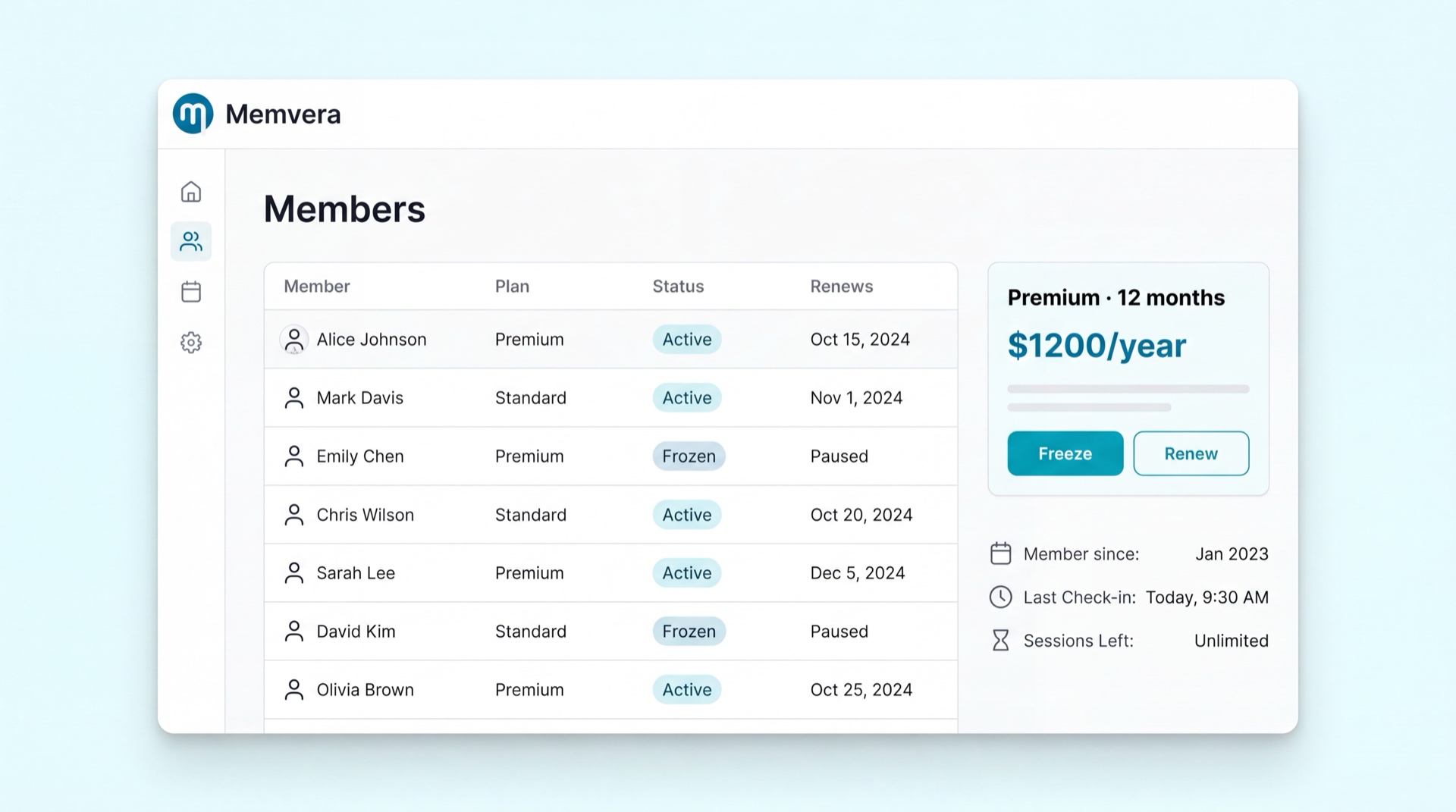
Membership Management is the heart of Memvera. It covers the full life of a membership: the plans you sell, the contract each member signs up to, and everything that happens afterward — freezing, renewing, cancelling, and transferring. When a member joins, pays, pauses, or leaves, it happens here.
Key concepts
- Plan — a membership product: its price, duration (e.g. 1, 3, 12 months), what it includes, and who it's for (gender, age, club). You can sell the same plan at different prices by location, channel, or audience, and cap its weekly class sessions (e.g. a "3 days/week" plan).
- Contract — a specific member's subscription to a plan. It has a state: Pending → Active → (Frozen) → Expired / Cancelled.
- Joining fee — a one-time fee added on a member's first membership.
- Freeze — a temporary pause that extends the end date by the frozen days.
- Renewal — extending or starting a new term when a contract ends.
Main tasks
Create a membership plan
- Go to Catalogue → Plans (or Membership Config).
- Click New plan, then set the name, duration, and what it includes.
- (Optional) Set Sessions per week to cap how many classes a member on this plan can book each week (e.g. a 3-day plan →
3).0= unlimited. Scheduling enforces it at booking time. - (Optional) Flag it as a Day pass for a single-day access product — a day pass isn't a term membership, can't be renewed, and is the only plan type a Gift Pass can use.
- Open Prices and add a price (you can scope it to a club, channel, or audience).
- Set who can buy it — gender, age band, and whether it's visible online.
- (Optional) Add Terms & conditions notes (English + Arabic) — the free-text clauses that print on the agreement. The commercial terms (commitment, joining/cancellation fee, freeze, renewal) are generated automatically from the plan's own policies, so these notes only cover the rest: cancellation wording, code of conduct, and health/liability. See Agreement Generation.
- Save. The plan is now sellable at reception and (if marked) on the website.
Sign up a new member
- From Reception or Enroll, search for the person (to avoid duplicates) or create them.
- Choose the plan and club; the price and joining fee are shown.
- Take payment — the contract activates once payment settles.
Browse & filter the memberships list
The Memberships list shows every contract, with a Branch column so you can see where each one belongs.
- Managers see all branches and get a Branch filter to narrow the list to one location.
- A sales user without the "view-all" permission sees only the memberships for the branches assigned to them (their employee record's active club assignments); the branch filter is hidden, since there's nothing else to switch to.
Freeze a membership
- Open the member, go to their contract, and choose Freeze.
- Enter the dates (and reason, if required). The end date extends automatically.
- The member can't access the club while frozen; it resumes on the end date.
Renew or cancel
- Renew — open the contract and choose Renew; confirm the plan and price for the new term.
- Cancel — choose Cancel, pick a reason, and confirm. Refund rules and cooling-off periods are applied automatically.
Transfer a membership to another member
A member can hand their membership to another person — a rewrite transfer — for example when they relocate or gift it. Reception performs it from the member's contract: the original contract is closed and an identical one is issued to the recipient, carrying over the remaining paid days.
- Open the member's contract and choose Transfer (rewrite).
- Search for and select the new member (create them first if they aren't in the system).
- Confirm. The old contract is cancelled (reason: rewrite transfer), a new active contract is issued to the recipient with the remaining paid days, the old member's access is revoked, and the new member's is provisioned.
Eligibility — checked automatically, and configurable under the transfer policy:
| Rule | Default | Configurable? |
|---|---|---|
| Contract must be Active | required | No — structural. A frozen, expired, or cancelled membership can't be transferred. |
| A different member | required | No — structural. Can't transfer to the current holder. |
| Transfers allowed | on | Yes — turn transfers on/off entirely. |
| Max transfers (lifetime) | 1 | Yes — how many times a membership may change hands (was "once per lifetime"). |
| Cutoff before expiry | 30 days | Yes — block transfers inside the last N days of the term. |
| Paid-in-full only | on | Yes — allow installment (recurring) memberships to transfer too. |
| Gender re-check | on | Yes — enforce the club + plan gender rules on the recipient. |
What carries over: the remaining paid days, plus the plan, price, club, and expiry date. Add-on packages (e.g. PT sessions) follow each add-on's own transfer rule — transferable ones move with the membership, others are cancelled. If the brand has configured a rewrite fee, it applies.
Transfer policy (configuration)
The transfer rules are set under Membership config → Transfer policy, exactly like the freeze policy. You configure a brand-wide default plus optional per-plan overrides (the plan-specific policy wins), and each policy carries an effective-from date so existing members keep the rules they joined under (grandfathering). Configurable fields: allow transfers, max transfers, cutoff days before expiry, allow installment memberships, and enforce gender check.
Configuration
Only two rules are not configurable — they're structural: the membership must be active, and it can't be transferred to its current holder. Everything else is set per brand (and optionally per plan). With no policy configured, the built-in defaults above apply, so transfers keep working out of the box.
Freeze policy (configuration)
Freezing is governed by a freeze policy you configure under Membership config → Freeze policy. It controls how much a member may pause their membership and what it costs. You can set one brand default plus per-plan overrides (the most specific match wins).
| Setting | What it controls |
|---|---|
| Free days | Total days a member can freeze for free over their term (e.g. 30). |
| Max freezes | How many separate freezes they may take (e.g. 2) — stops many tiny freezes. |
| Min duration (days) | The shortest a single freeze can be (e.g. 7). |
| Paid freeze fee | What a freeze costs after the free allowance is used up. 0 means freezing is simply blocked past the allowance. |
| Complimentary days | Bonus days at the end of a membership that cannot be frozen — only paid time can. |
| Cohort effective from | The date the policy starts applying — used to protect existing members (see below). |
How a freeze is decided: the request must be at least the minimum duration; it is free while both the free-days total and the freeze-count are still within limits; once either is used up it is charged the fee (or refused when the fee is 0). Frozen days are added to the membership's end date.
Per term
The allowance is per membership term — renewing gives a fresh allowance.
Grandfathering
Changing the policy should not punish members who already joined. A policy applies only to memberships activated on or after its cohort date — so to tighten the rules, add a new policy with today's date rather than editing the old one. Existing members keep the terms they joined under.
Tips
TIP
Always search before creating a member — Memvera keeps one record per person to avoid duplicate memberships and billing.
Renewal policies (per plan)
Under Membership config → Renewals you create named policies and attach them per plan in the plan editor (the brand's active policy covers everything else):
- Auto-renew — renews at term end by charging the saved card (primary, then backup), with the failed-payment follow-up lifecycle.
- Grace days — the renewal window before AND after expiry treated as a continuation (no joining fee, same terms).
- Reminder days — how many days before expiry a "Renewal due" task opens automatically for the service team.
- Price lock — a renewing member keeps their existing price even after list-price increases.
Pre-sale & the cooling-off window
Pre-sale configs govern pre-opening campaigns and attach to plans the same way:
- Deposit & hold days — reserve the founding price with a partial payment for a fixed period.
- Cooling-off (days) — a first-time member can cancel within it for a refund; this window drives the approval-based refund workflow (cancel + refund + credit note).
- Cooling-off deduction — a configurable admin fee withheld from the refund (0 = full refund).
Related modules
Agreement Generation · Finance & Payments · Extra Services & Add-Ons · Member Management