
Employee App
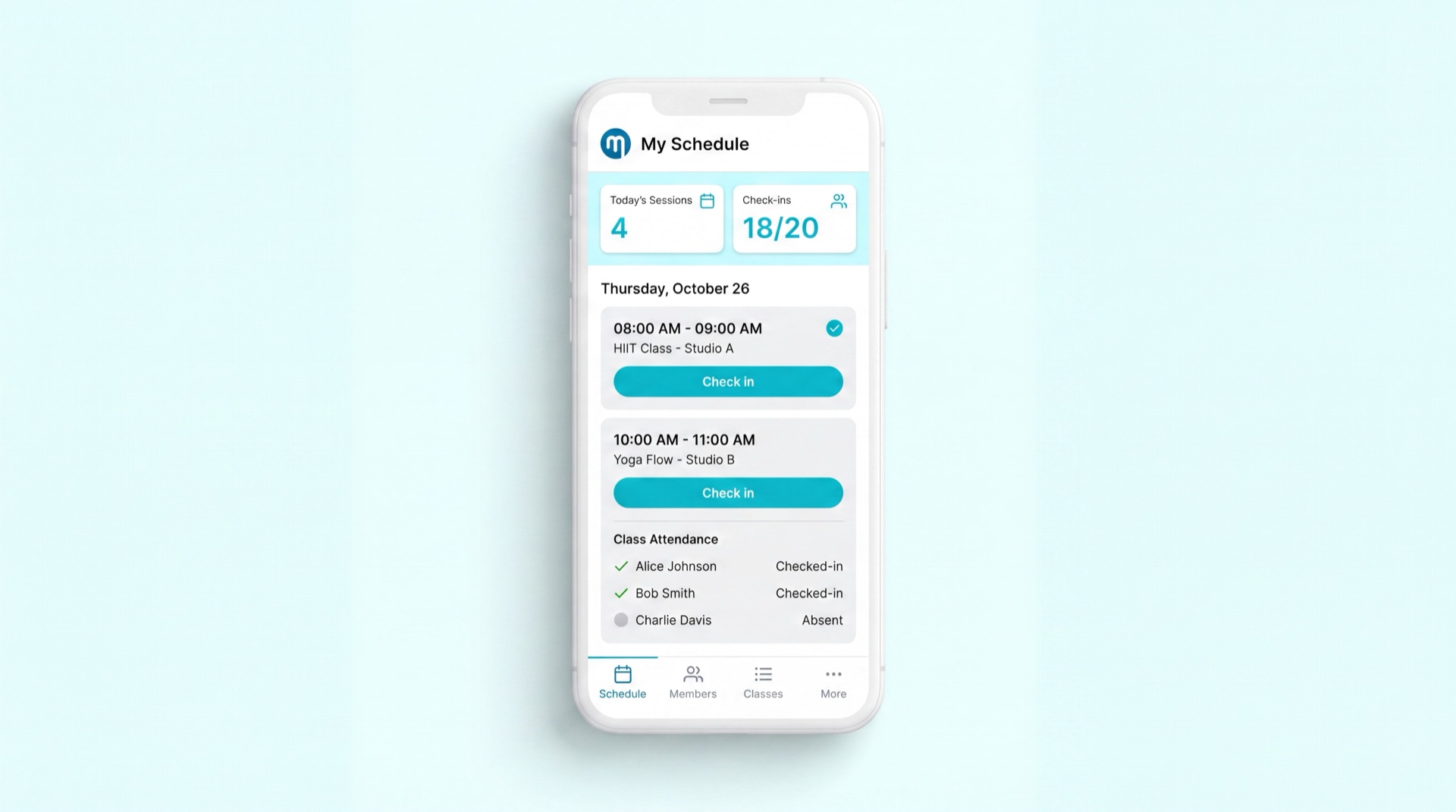
Staff & Administration
What it does
The Employee App is the mobile companion for trainers and floor staff. It lets them do their job on the move — submit availability, confirm conducted sessions, see their roster and commissions, look up members, log workouts, report broken equipment, complete opening/closing checklists, and message members. It's locked to the gym's location and to physical check-in data, so duties can only be performed when staff are actually on site and members have actually scanned in.
Key concepts
- Single sign-on — staff log in with their Memvera (or Microsoft Entra) credentials; only one active session is allowed at a time.
- Geofencing — operational buttons (attendance, sales, checklists) are disabled unless the device is inside the club's GPS boundary.
- Conduction — marking a PT or GX session as "Conducted", which triggers commission — only allowed if the member scanned into the club that day.
- Floor-duty block — PT bookings are blocked during a trainer's assigned floor-duty or admin hours so coverage is protected.
- Commission ledger — a real-time view of earned, pending, and clawed-back commissions, calculated on net (pre-VAT) value.
- Workout log — sets, reps, weights, and progress notes that stay company-owned on the member's timeline even if the trainer leaves.
- Digital checklists — opening, closing, and cleaning checklists with photo, timestamp, and GPS verification.
Main tasks
Submit availability and confirm sessions
- Open the availability calendar and submit your weekly schedule — remember the advance-submission deadline (e.g. 8 days ahead).
- When a booked session happens, open it and mark it Conducted; this triggers your commission.
- If the member never scanned in, the app blocks the confirmation — a manual override needs Fitness Manager approval.
Look after members and their workouts
- Search for a member by name, National ID, phone, or agreement number.
- Review their profile and log workouts — sets, reps, weights, and progress notes.
- Watch for warnings (e.g. the base contract expiring before the PT package) before booking new sessions.
- Message the member by WhatsApp or SMS, respecting their opt-in/opt-out preferences.
Handle floor and facility duties
- Complete the mandatory opening / closing / cleaning checklists — the app captures photo, time, and location.
- Report a broken machine by scanning its QR code to raise a maintenance ticket; it's hidden from the member app automatically.
- Use manual gate override to open a turnstile when needed — every override is logged with your ID, reason, and timestamp.
Tips
INFO
Most action buttons only work inside the club's geofence and after the member checks in. This is by design — it stops attendance and commission being recorded for sessions that didn't physically happen.
TIP
Submit your availability before the deadline. Late submissions are flagged and tracked per trainer, and gaps can leave bookable slots empty.
Related modules
Employees · Calendar & Scheduling · Sales Commissions · Access Control