
Member Management
CRM & Marketing
What it does
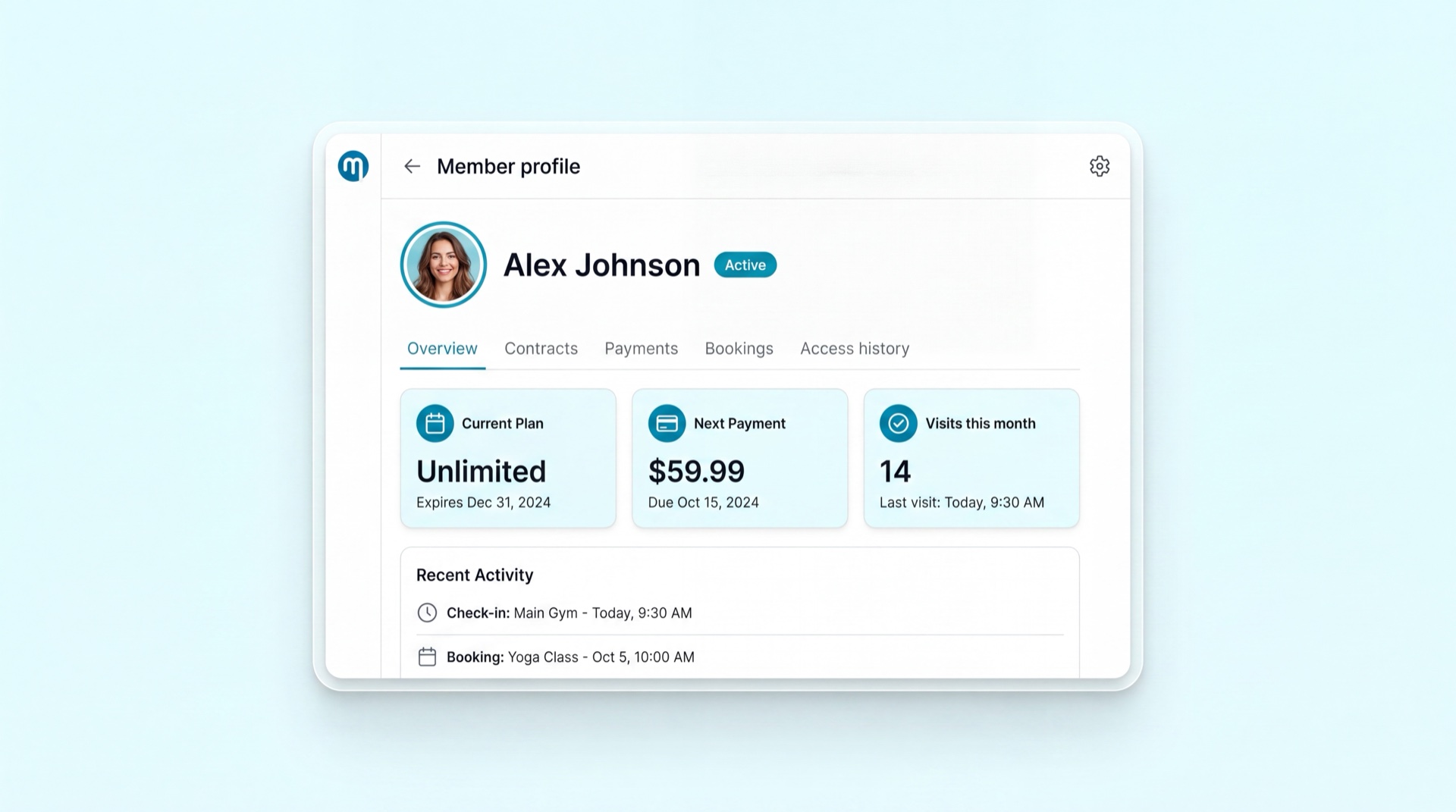
Member Management is the single, complete view of each person you serve. It holds one Golden Record per individual, a 360° profile that pulls together memberships, billing, PT sessions, purchases, documents, messages, and activities, and lets front-desk staff find anyone instantly and act on their account in one place — change a membership, take a payment, log a complaint, or read the alerts that need attention.
Key concepts
- Golden Record — one unique profile per person, keyed on National ID or mobile number. The system blocks or prompts a merge when a duplicate is detected, so a prospect and a member never live as two records.
- 360° profile — the contextual hub: personal info, active services, billing status, open actions, PT ledger, documents, communication log, and access history, all on one screen.
- Global search — find a member instantly by name, National ID, phone, email, or agreement number, with partial / fuzzy matching.
- Profile alerts — prioritised, colour-coded flags on the profile header (e.g. Minor, Pending Debt, Frozen Account, Medical Clearance Required) so staff see what matters the moment they open the record.
- PT session ledger — the per-member view of personal-training credits, split into Purchased, Scheduled, Conducted, and Available, including no-shows and late cancels.
- Communication preferences — per-channel and per-category opt-in / opt-out (SMS, email, push, WhatsApp), plus preferred language, respected by every automated message (PDPL).
- Change log — an immutable audit trail recording who changed what, when, and the before / after values.
Main tasks
Find a member and open their profile
- Use global search and type any of: name, National ID, phone, email, or agreement number.
- Pick the result; the 360° profile opens with a snapshot of services, billing, and any active alerts in the header.
- From here you can jump to any tab — invoices, PT ledger, documents, messages, or activities.
Process a membership change
- On the member's profile, open the contract and choose the action: transfer (rewrite), upgrade / downgrade, freeze / unfreeze, or cancel / refund.
- Follow the guided steps; the system enforces the membership business rules for that action.
- Pick the required reason code (configured per brand) and confirm. The change is logged automatically.
Manage communication preferences and documents
- Open the preferences section and set opt-in / opt-out per channel and category, plus the member's preferred language.
- In the documents tab, securely upload signed forms, medical notes, or bank certificates — files are stored encrypted and access-restricted.
- Save. Automated communications will now respect the member's choices (PDPL compliant).
Review history and activity
- Open the billing / invoice tab to see past receipts and POS purchases, and the member's total spend.
- Open the PT ledger to settle any dispute over remaining sessions (Purchased vs. Conducted vs. Available).
- Use the activity and messages tabs to see staff tasks, complaints, and every message sent, with timestamps.
Tips
TIP
One person, one record. If search surfaces a possible duplicate, merge into the Golden Record rather than creating a new profile — it keeps billing and history clean.
INFO
Photo handling follows Saudi privacy rules: female member photos are converted to a biometric hash for access and are never displayed in the profile.
Related modules
Lead Management · Membership Management · Finance & Payments · Marketing Automation