
Member App & Website
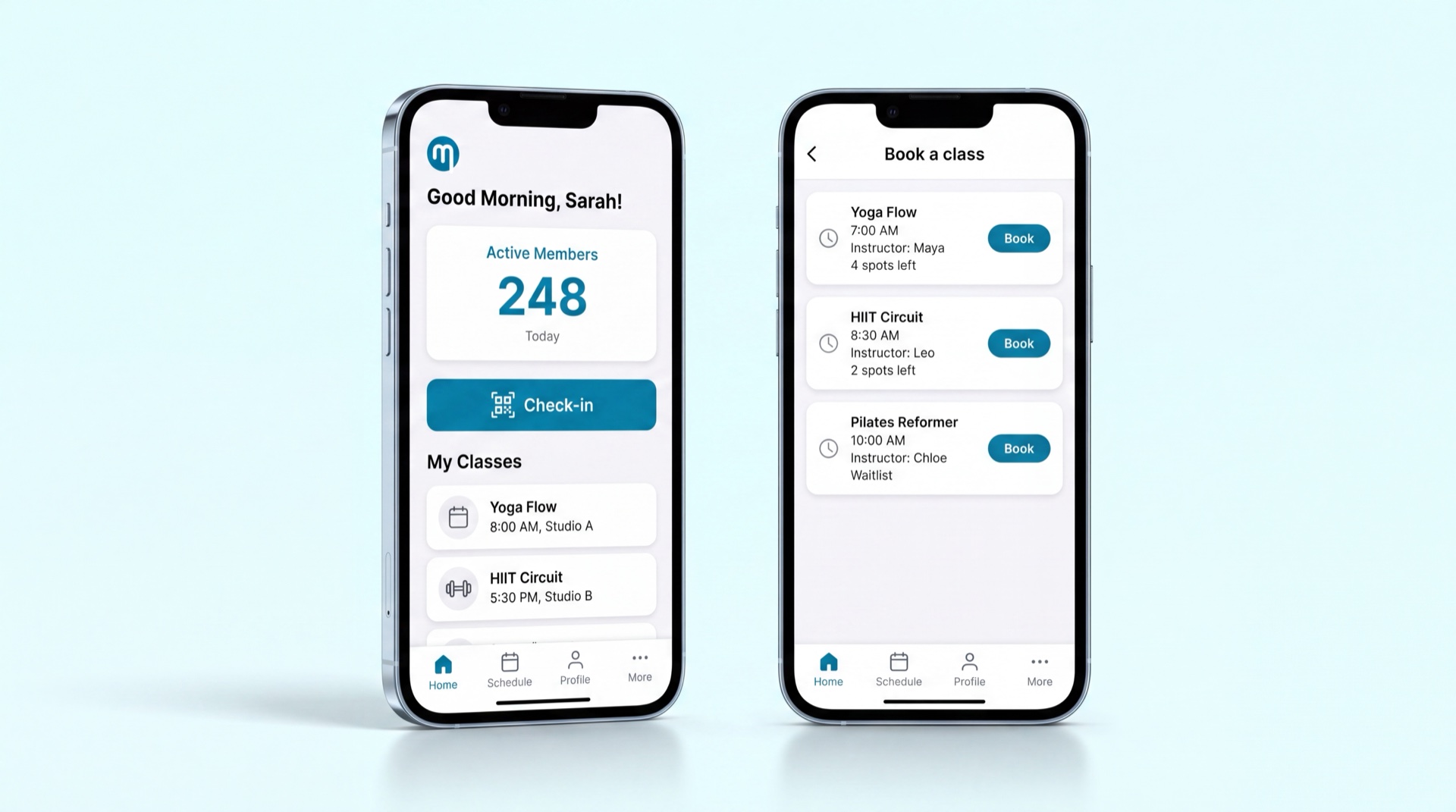
Member Experience
What it does
The Member App & Website is the member's own pocket version of the gym. From their phone or browser, members sign in, see their membership at a glance, book classes and personal training, pay, check in with a QR code, and manage everything they'd otherwise visit reception for — freezing, renewing, buying add-ons, and reading their agreements. Every action respects the same rules your staff work with, so a frozen member can't book and a female member's photo is never exposed.
Key concepts
- Membership status — the single screen a member opens first: plan name, dates, status (active, frozen, expired, pending cancellation), remaining freeze days, and which self-service actions they're allowed to take right now (freeze, cancel, upgrade, renew) with any fees shown up front.
- Brand & gender context — the app themes itself (B_FIT or Optimo) and filters all content — timetables, trainers, facilities — to what's appropriate for the member's brand and gender.
- Add-ons & consumption ledger — extras like PT packages or locker rental, each showing remaining sessions and expiry in a live "used vs. available" view.
- Dynamic QR code — a rotating check-in code the member presents at the turnstile.
- Free visits — booked trial/free visits a member — or a lead who signs into the app — can see on the home Upcoming list and a dedicated My visits screen, each with its date/time, branch, host, and status (Booked, Attended, Missed, Cancelled).
- Notification center — push and in-app messages: agreement ready to sign, free visit booked, membership frozen or renewed, plus other booking, billing, contract, and retention events — with member-controlled preferences.
Main tasks
Manage a membership from the app
- The member opens the app and lands on their membership status screen.
- They tap an available action — freeze, renew, upgrade/downgrade, or cancel.
- For upgrades, a pro-rata preview shows the price difference and new billing before they confirm.
- They confirm; any fee is taken through the gateway, and the contract updates automatically.
Book a class or personal training
- The member browses the class timetable (filtered by club, date, type, and trainer) or a trainer's availability.
- They book a spot — or join the waitlist if the class is full.
- For PT, they pick a session (or set up a recurring series), drawing on their purchased package.
- They check in on arrival; attendance is confirmed from the access-control record.
Pay, check in, and stay informed
- The member adds a payment method and sets a primary card for recurring billing.
- They review transaction history, upcoming billing, and download invoice/receipt PDFs.
- At the club, they open their dynamic QR code to pass the turnstile.
- They read notifications, their communication history, and signed agreements any time.
See my free visits
- On the home screen, the member sees their booked free/trial visits in the Upcoming list.
- They open My visits for the full list, each showing date/time, branch, host, and status.
- The status follows the visit's life cycle — Booked, Attended, Missed, or Cancelled.
- A lead who signs into the app sees their booked visits here too, before they've joined.
Sign your membership agreement
- After buying a membership, the member gets a notification and a home banner prompting them to review and sign their membership agreement.
- They open Agreements and review the bilingual PDF, which now includes the plan's terms.
- They draw their signature on screen and submit.
- The agreement is marked signed and can be reopened any time. (See Agreement Generation.)
Tips
TIP
The membership status screen drives everything — it tells the app which buttons to show. If an action button is missing, the member isn't eligible for it (e.g. no freeze days left), and the reason is shown there rather than failing later.
INFO
Female members' original photos are never returned to the app — only a placeholder — and frozen or blocked members are automatically prevented from booking, matching the rules staff enforce in-club.
The mobile app (iOS / Android)
The member experience also ships as a native mobile app with the same white-label identity (each brand's colour and logo apply automatically):
- Arabic/English with full dark and light themes; server messages arrive in the app's language.
- The home screen is a stats dashboard: next class, membership days left, loyalty points, PT credits and wallet balance.
- The access-pass QR sits permanently in the centre of the navigation bar.
- Attendance confirmation: a gate check-in shows a "Checked in" badge on the booking, and where club policy allows it an "I'm here" button appears around session time.
Shop & branch pickup
The shop lists the club's products with live stock for the selected branch: add to basket → pay from the wallet (instant) or by card → collect at the branch. Each order shows its state ("Ready for pickup" / "Pending payment"), and if stock runs out before a card payment completes, the amount is automatically refunded to the wallet.
Related modules
Client Portal · Membership Management · Agreement Generation · Extra Services & Add-Ons · Calendar & Scheduling