
Calendar & Scheduling
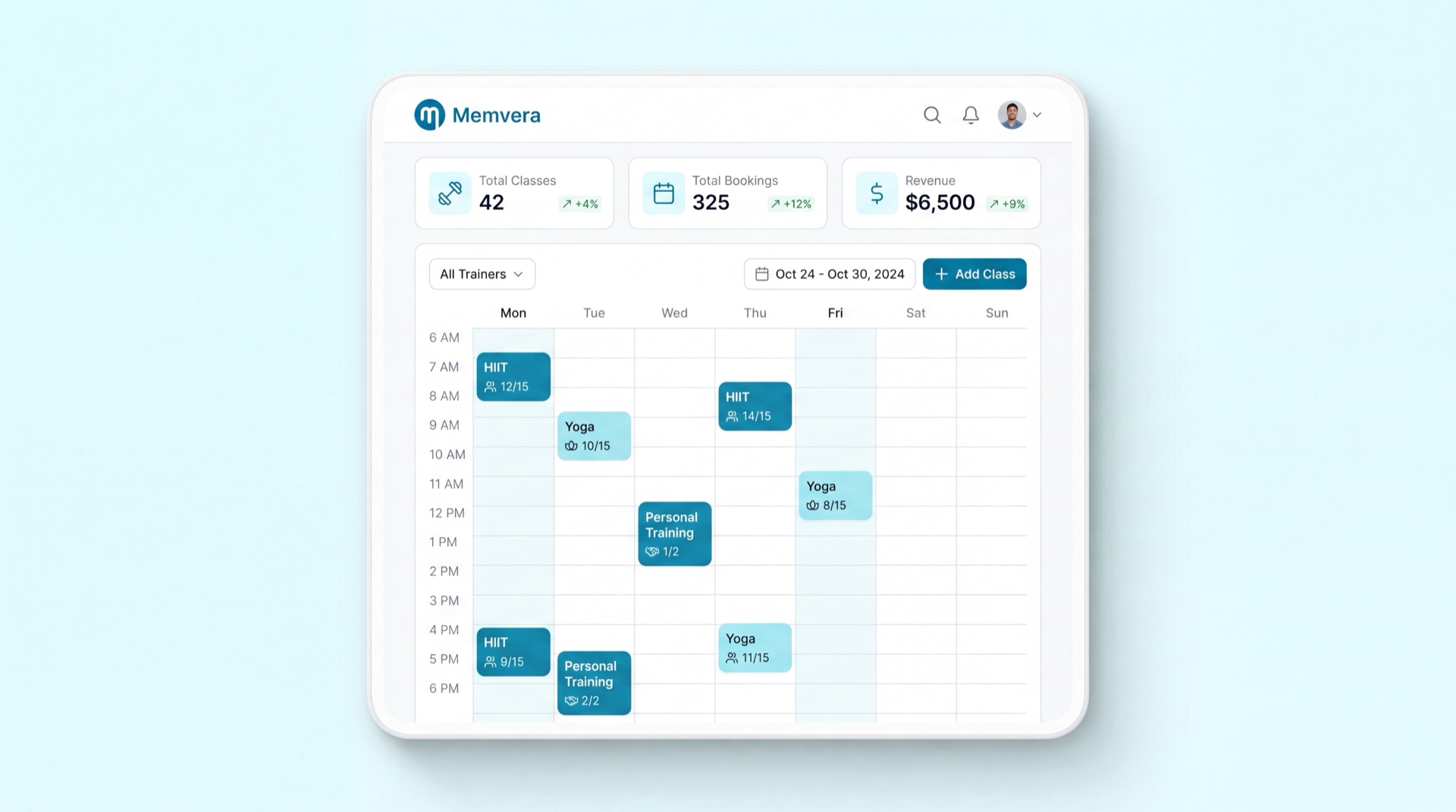
Scheduling & Events
What it does
Calendar & Scheduling is where your day-to-day timetable lives. You create and place every class, PT session, and admin block (like deep cleaning) onto a calendar that knows your rooms, trainers, and capacity. The system blocks double-bookings, enforces booking and cancellation windows, runs waitlists, and keeps an immutable log of who changed what. Staff book members from the front desk; members book from their app.
Key concepts
- Event — one scheduled instance: a group class, PT session, or admin block. Every event is bound to a zone/room and a time, and (usually) a trainer.
- Conflict check — before saving, the system verifies the room and trainer are free. If they're busy it rejects the booking and suggests alternatives.
- Booking window — how early a member may book and how late they may cancel before a charge applies (e.g. 4 hours for PT, 2 hours for group classes).
- Booking limits — an optional cap on how many classes a member may hold per day and per week — set brand-wide (Booking policy) and/or per plan (a plan's Sessions per week).
- Waitlist — when an event is full, members join a queue. When a spot opens, the next person (FIFO) is offered it automatically.
- Strike — a penalty added to a member who no-shows, late-cancels, or fails to confirm. Strikes accumulate toward a temporary booking ban.
- Recurring series — a repeating timetable (e.g. a standing weekly PT slot or a class every Monday), with individual sessions still cancellable on their own.
Main tasks
Add an event to the calendar
- Open Calendar and pick the day, club, and room view you want.
- Click an empty slot (or New event) and choose the type — class, PT, or admin block.
- Set the room, time, trainer, and capacity. The system runs a conflict check as you save.
- If a clash is found, pick one of the suggested free slots or change the room/trainer, then Save.
Book or cancel a member's attendance
- From the front desk, search the member and open Manage booking.
- Pick the class or PT session; the system checks freezes, strikes, and remaining session balance before confirming.
- To cancel, open the booking and choose Cancel — select a reason code. Inside the penalty window it's a Charge; outside it, credits are restored automatically (No-Charge cancellations may be manager-only).
Reschedule or cancel events in bulk
- To move an event, drag it (or open it and pick a new time) — a conflict check runs and booked members are notified.
- To close a room for maintenance, select the affected events and Cancel in one action.
- Affected members are notified automatically and their session credits are restored.
Tips
TIP
Frozen or banned members can't be booked, and the system blocks a member from holding two events at the same time — so you don't have to track this manually.
INFO
Every create, move, and cancel is written to an immutable change log with the staff name and timestamp — useful when a member disputes who cancelled a session.
TIP
The All bookings page lists every reservation newest-first, with a Booking date column (when the reservation was made) beside the class date — so you can see who just booked at a glance.
Booking limits (per day, per week, and per plan)
You can cap how many classes a member may hold, so no one hogs the timetable. Limits count by the class date across all class types; cancelled and no-show bookings don't count. They apply when a member books from their own app — staff bookings and reschedules are never blocked.
Brand-wide limits — on the Booking policy page:
- Max bookings per day — the most classes a member can hold on the same day.
- Max bookings per week — the most in the same week (Saturday–Friday).
Per-plan weekly cap — on each plan (Catalogue → the plan's Sessions per week). This models tiered plans: a "3 days/week" plan lets its members book 3 sessions a week.
0 = unlimited at every level. When both a plan cap and a brand cap apply, the more restrictive one wins — a member who reaches their limit sees a clear message ("Your plan allows up to 3 sessions per week.") and can book again the next day or week.
Two-key attendance confirmation (attendance & commissions)
A session only counts as conducted — and the trainer's commission only moves — when two independent keys turn:
- The member key — evidence of presence: a gate check-in (strongest, automatic), an in-app "I'm here" confirmation (when the policy allows it), or a front-desk marking (audited with source and time).
- The trainer key — the trainer confirms attendance from their session list, or closes a whole group class with one Conduct session action (members with a key ✓ conduct; the rest are no-shows).
Disagreements route to Approvals instead of punishing anyone automatically:
- Trainer confirms a "show" with no evidence → Fitness-Manager override approval.
- Trainer marks "no-show" against a gate check-in → manager review, no automatic strike, and any PT credit is held until ruled.
- Trainer never confirms → the session conducts on the member's evidence (the member is never punished) and the commission is held until the trainer confirms within the deadline — otherwise it expires.
Sources and deadlines are set on the Booking policy page: the member-evidence source (gate / app / either, with a PT-specific override), the app-confirm window, and the trainer-confirm deadline for held commissions.
Related modules