
Lead Management
CRM & Marketing
What it does
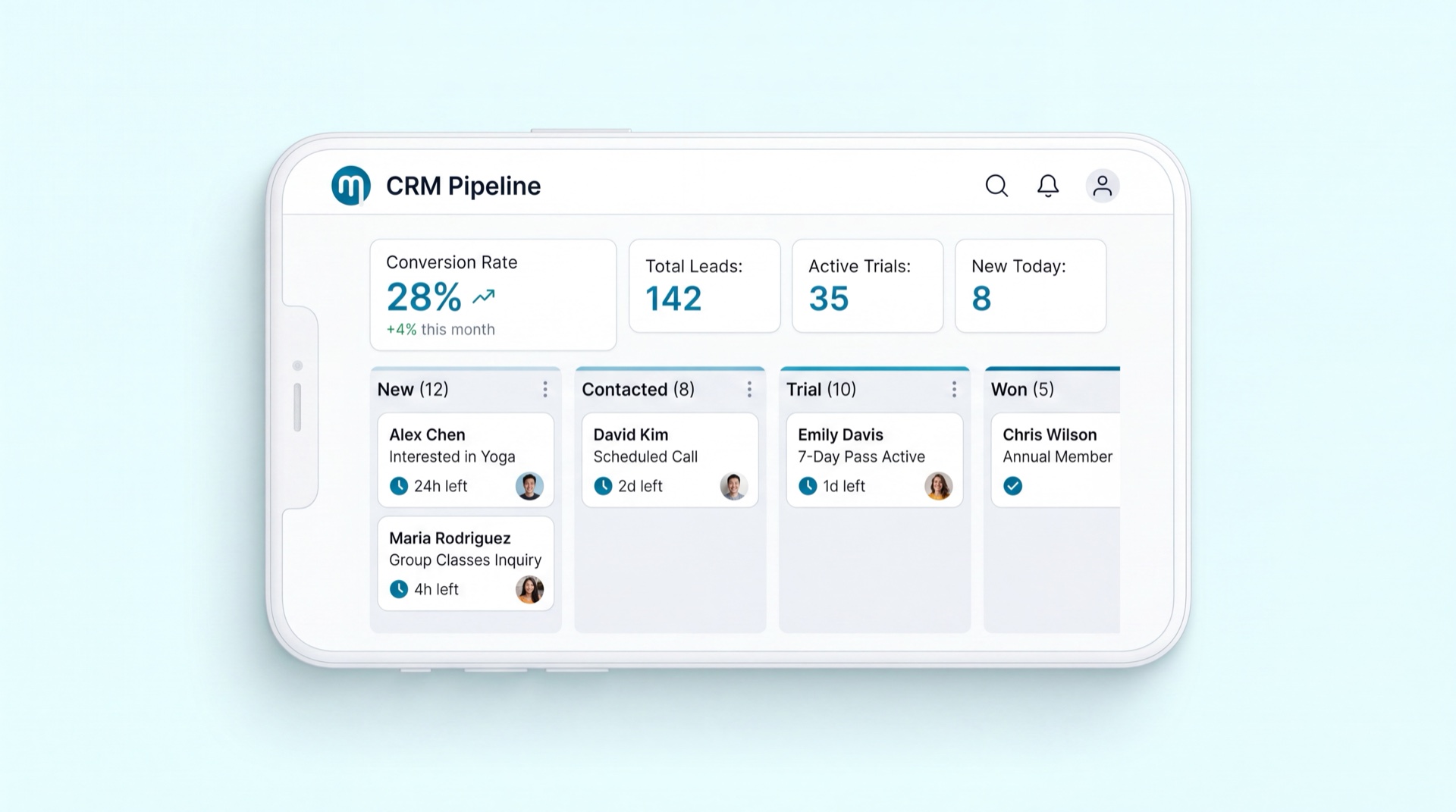
Lead Management is where every potential member is captured, tracked, and worked until they join — or are recorded as lost. Leads flow in automatically from web forms, campaigns, WhatsApp, and the mobile app, land on a visual free-visit pipeline, get routed to the right branch and salesperson, and move stage by stage toward a sale. When a lead subscribes they convert to a member automatically and drop off the board.
Key concepts
- Lead (Prospect) — a potential member who hasn't bought yet. They have their own profile, visually distinct from a full member, with contact details, source, and activity history.
- Free-visit pipeline — the visual board (kanban) of eight stages a lead passes through: New → Contacted → Free visit booked → Visited (show) / No-show → 2nd visit booked → Won (Hot lead) / Lost (Cold lead).
- Appointment-driven — the visit stages are driven by a real appointment: you book a free visit at a date & time, then record attendance (Showed / No-show) from the card itself. A no-show can book a 2nd visit, looping back into the attendance flow.
- Guided moves — advancing forward into a working stage requires logging a contact ("what happened"), assigned to a rep. Moving backward (e.g. Contacted → New) is blocked, so the pipeline can't drift out of sync with the visit record.
- Assignment & scope — every lead has an owner (salesperson). A salesperson sees only the leads assigned to them; a club manager and supervisors see all leads (via the "view-all" permission).
- Lost reason — a mandatory reason code (Price, Location, Competitor, Timing) captured whenever a lead is marked lost, so marketing can see why prospects don't convert.
Main tasks
Work a lead through the pipeline
- Open the pipeline board; new leads appear in the first stage, each showing source, owner, and an SLA indicator.
- To move a lead from New to Contacted, log a contact describing what happened (channel, outcome, note) and assign it to a rep — the card only moves once the contact is logged.
- Click Book free visit on the card and pick a date & time — the card moves to Free visit booked (you can't book in the past).
- At visit time click Showed or No-show on the card: Showed → Visited, No-show → No-show and offers Book 2nd visit.
- From Visited, mark the lead Won (Hot lead) — with a confirmation — or Lost (Cold lead).
Log a contact
- From any card, Log contact records a call or message: channel, direction, outcome, a note (required), and assign to a rep (required), plus an optional next follow-up. It builds the activity history and raises the engagement signal.
Assign & bulk-reassign leads
- A salesperson sees only their own leads, so assignment and reassignment are club-manager / supervisor actions.
- In List view, tick several leads with the checkboxes, then pick a rep in the bulk-assign bar to reassign them all at once (selecting one covers single reassignment too). Each move is logged and the new owner is notified.
Free-visits agenda
- The Free visits button (next to "New lead", or the sidebar item) opens an agenda of every trial visit grouped by day, with filters (Today / This week / Upcoming / All + status + name search) and inline Showed / No-show buttons.
Convert to a member
- When the sale is agreed, click New sale on the card to open the POS with the lead pre-filled on the Memberships tab. Once their membership activates, the lead converts to a member automatically and drops off the board.
Tips
TIP
The visit stages (booked / showed / no-show / 2nd visit) are set only via booking + attendance — not the dropdown. Try to move them with the selector and the system points you to the Showed / No-show buttons.
INFO
A salesperson sees only the leads assigned to them (and only their branch's memberships). Grant the view-all permission to management roles (club manager, owner, supervisor) only.
Related modules
Member Management · Marketing Automation · Membership Management · Notifications